 LoudLock
Your volume jumped to 100% again. Not anymore.
LoudLock is a free Windows tray app that undoes sudden volume rises you didn't make, caps loudness per device, locks your mic level, and puts every app back at the volume you gave it. It steps in within milliseconds.
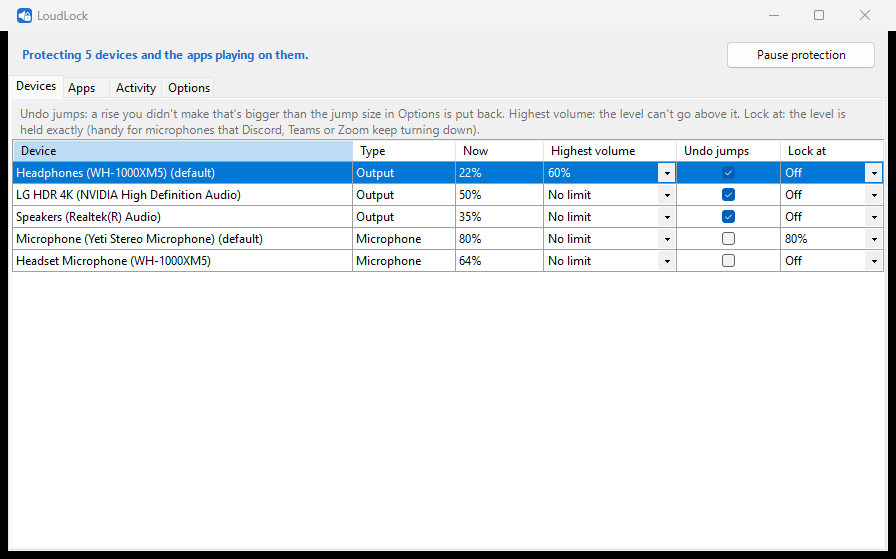
Headphones capped at 60%, the microphone locked at 80%. Shown with sample devices.
What happens when something forces 100%
Windows reports every volume change, but not who made it. LoudLock looks for a person at the controls: a mouse button held on a slider, a volume key, or the taskbar, Volume mixer, Sound settings or EarTrumpet in front. No person and a rise bigger than 25 points? It goes straight back.
Timing from the built-in self-test on a real PC. Drops and small rises are never undone, so apps that nudge their volume keep working.
| Rule | What it does | Applies to you too? |
|---|---|---|
| Undo jumps | A rise of more than the jump size that you didn't make goes back to where it was | No |
| Highest volume | The level can't go above it, per device | Yes |
| Lock at | The level is held exactly, per device or app. Handy for mics that Discord, Teams or Zoom keep turning down | Yes |
| Put back when it starts | An app goes back to the level you last gave it when it starts playing | No |
| Reconnect | Headphones that reconnect louder than you left them are turned back down, never up | No |
What you get
No more 100% surprises
Bluetooth reconnects, driver resets, games and browser tabs that force their own volume: undone in milliseconds.
A real maximum
Cap each device separately. Headphones at 60%, speakers free. A simple way to protect a kid's ears too.
Mic lock
Hold a microphone at an exact level so apps with automatic gain can't keep changing it.
Apps remember
Spotify, Discord, games and System sounds come back at the level you gave them, not 100%.
Says what was going on
Every correction is logged with the app in front and what connected or started playing just before. A lead, not proof.
Self-test and one exe
Fake the problems on your muted output and watch them get undone. No driver, no injection, MIT-licensed source, built by GitHub Actions.
Get started
- Download LoudLock.exe and put it somewhere permanent, such as
%LOCALAPPDATA%\LoudLock\. - Run it. It lives in the tray and starts with Windows, since it can only catch a jump while it's running.
- Jump protection and app memory work right away. Click the icon to cap a device or lock a mic.
- Optional: right-click the icon → Run self-test to watch it work.
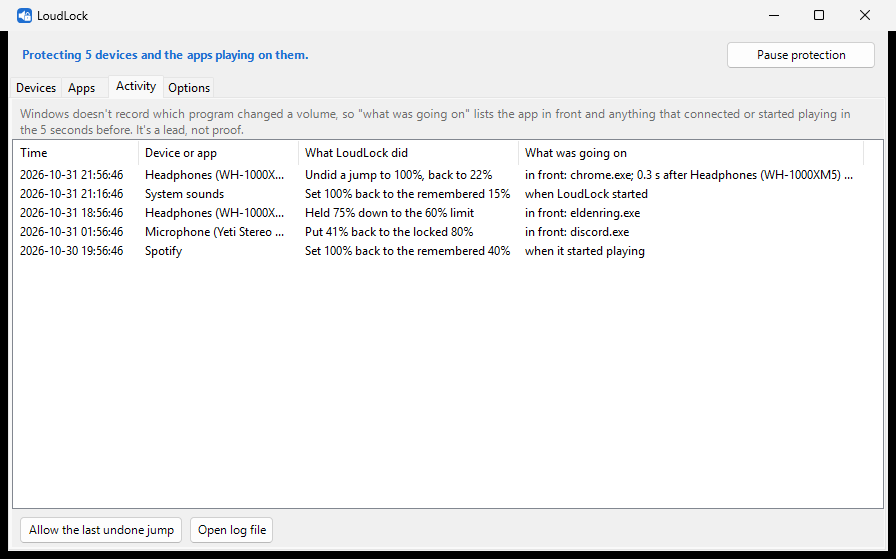
Every correction, with what was going on. Sample data.
FAQ
Will it fight me when I turn the volume up?
Not when it can tell it's you: dragging a slider, the volume keys, the taskbar, the Volume mixer or Sound settings. If it ever undoes something you meant, click the notification or use Allow the last undone jump in the tray menu. You can raise the jump size or switch it off per device or app.
Can it limit loudness in decibels, like a compressor?
No. LoudLock controls the volume sliders, not the sound itself, so a loud scene at 40% is still loud. For a true limiter, use Equalizer APO with a limiter plugin; the two work together.
Does it stop the jump before I hear it?
It reacts to Windows' change notification, usually within a few milliseconds. That's after the change, so a split second at the higher level is possible.
Does it need admin rights or change other programs?
No. It uses the same documented Windows audio interfaces as the Volume mixer, runs as you, and injects nothing into other processes.
Can it tell me which program changed my volume?
Not for certain: Windows doesn't record that. LoudLock logs the app in front and anything that connected or started playing in the 5 seconds before, which often points at the culprit.
How is this different from Sound Lock, Volume Limiter or EarTrumpet?
Sound Lock is closed-source freeware whose last version was listed in 2012 for Windows XP to 8. Volume Limiter was last updated in 2016, and its reviews mention the limit resetting after a restart. EarTrumpet is an excellent mixer but doesn't lock or limit levels. LoudLock handles jumps, caps, mic locks and per-app memory together, and logs what was happening each time.
Why this exists
"Why does my volume keep jumping to 100%?" has been asked for a decade, and the answers are usually "reinstall the driver" or a registry edit.
- Microsoft Q&A: Windows 11 sets itself to max volume (20+ people with the same question, no fix)
- Super User: Windows 10 volume randomly jumps to 100% (209k views), Limit volume range Windows 10 (38k views, no accepted answer) and Why is my microphone's volume level keep resetting? (53k views, no accepted answer)
- Reddit: "Volume keeps auto-adjusting to 100%", "System Sounds randomly resets to 100", "How do you prevent the input volume from going down?", and many more